Seeing ChatGPT error in message stream can be frustrating, especially when a long answer suddenly stops halfway through. One second, ChatGPT is happily writing, and the next, the response disappears like it took an unexpected coffee break.
The good news is that this error does not always mean something is wrong with your account. It can be linked to a temporary service issue, network problem, browser extension, VPN, long conversation, or connection interruption. OpenAI recommends several practical troubleshooting steps for these types of ChatGPT errors.
1. What Does ChatGPT Error in Message Stream Mean?
The phrase sounds technical, but the basic idea is simple.
- ChatGPT started processing your request.
- A response began appearing on your screen.
- The response stream was interrupted.
- Your answer may stop before completion.
- The problem can happen during long responses.
- A weak connection can interrupt streaming.
- A browser issue can interfere with the session.
- Extensions can sometimes affect page behavior.
- VPNs or proxies can change the network path.
- A temporary OpenAI service issue can also be involved.
- The same prompt may work after a retry.
- A fresh chat can sometimes solve the issue.
- The error does not automatically mean your prompt was bad.
- It does not always mean your account is broken.
- Think of it as a conversation that lost its connection mid-sentence.
2. Why Does the Error Happen?
There is no single cause for every ChatGPT error in message stream.
- Your internet connection may briefly drop.
- Your connection may become unstable.
- The browser session may become stuck.
- A browser extension may interfere.
- A VPN may affect the connection.
- A proxy may interrupt traffic.
- Security software may block part of the connection.
- A long conversation may become harder to handle.
- A temporary server issue may occur.
- A specific chat may have a temporary problem.
- An attachment may contribute to an issue.
- A browser cache problem may affect the page.
- Cookies may become outdated.
- A network firewall may block required traffic.
- A WebSocket connection may disconnect.
- Sometimes the problem simply disappears after retrying.
OpenAI’s troubleshooting guidance specifically points to network configuration, browser extensions, VPNs, server-side problems, and long conversations as possible areas to check.
3. First Fix: Regenerate the Response
Before changing ten settings and questioning your entire internet connection, try the easiest option.
- Click Regenerate if it appears.
- Send the same prompt again.
- Wait a few seconds before retrying.
- Avoid clicking repeatedly.
- Check whether the second attempt completes.
- If it works, continue normally.
- If it fails again, try a new chat.
- Keep your original prompt saved.
- Copy long prompts into a notes app first.
- Avoid rewriting everything immediately.
- Test with a shorter request.
- Check whether short messages work.
- If short messages work, test your original request again.
- One failed response does not prove a bigger problem.
- Sometimes ChatGPT simply needs another attempt.
OpenAI recommends regenerating a failed response as one of the first steps for response-generation problems.
4. Start a New Chat
A very long conversation can sometimes become awkward to work with.
- Open a new ChatGPT conversation.
- Copy your important prompt.
- Paste it into the fresh chat.
- Remove unnecessary old instructions.
- Test the request again.
- Keep only the information you need.
- Avoid carrying hundreds of unnecessary messages forward.
- Try the same model again.
- If the problem continues, test a shorter prompt.
- A new chat gives you a clean starting point.
- It can help separate chat-specific problems from wider issues.
- Save important text before leaving the old conversation.
- Do not delete useful information until you have copied it.
- Compare the new chat with the old one.
- If the new chat works, the original conversation may have been the problem.
OpenAI specifically suggests starting a new chat when a conversation is long or becomes stuck.
5. Check Your Internet Connection
A connection can look fine while still having brief interruptions.
- Open another website.
- Refresh that website.
- Check whether pages load normally.
- Test another online service.
- Restart your router if needed.
- Try a different Wi-Fi network.
- Test a mobile hotspot if available.
- Avoid switching networks repeatedly during one response.
- Keep your device close to the router.
- Pause heavy downloads temporarily.
- Close unnecessary streaming tabs.
- Check whether other devices have connection problems.
- Try ChatGPT again after the connection stabilizes.
- If another network works, compare the two connections.
- A stable connection is especially useful for streamed responses.
OpenAI’s network guidance recommends checking whether the issue changes when switching between a local network and another connection, such as a cellular hotspot.
6. Refresh the ChatGPT Page
A simple refresh can sometimes clear a temporary page problem.
- Save your prompt first.
- Refresh the page.
- Wait for ChatGPT to load completely.
- Open the conversation again.
- Send the prompt once.
- Avoid refreshing while a response is actively arriving.
- If the page remains stuck, reload it.
- Try a hard refresh if needed.
- Sign out and sign back in if the issue continues.
- Check whether other chats work.
- Test a simple message.
- Return to your original prompt later.
- Avoid opening many ChatGPT tabs.
- Close duplicate sessions.
- Keep one clean tab for testing.
- See whether the error returns.
OpenAI recommends refreshing, restarting the browser or app, and signing out and back in for certain stuck or unresponsive ChatGPT problems.
7. Try Incognito or Private Browsing
Private browsing is a useful test because it starts a cleaner browser session.
- Open an incognito window in Chrome.
- Use a private window in another browser.
- Sign in to ChatGPT.
- Try a short prompt first.
- Then test the original prompt.
- Compare the result with your normal browser.
- If it works privately, browser settings may be involved.
- Extensions are often disabled in private mode.
- Cookies may behave differently.
- Cached site data is less likely to interfere.
- Do not assume private browsing fixes the root cause.
- Use it as a troubleshooting test.
- If it works, return to your normal browser.
- Disable extensions one at a time.
- Test ChatGPT again.
OpenAI recommends trying incognito or private browsing when troubleshooting ChatGPT errors.
8. Disable Browser Extensions
Some extensions change how websites load or communicate.
- Temporarily disable unnecessary extensions.
- Pay attention to privacy extensions.
- Check security extensions.
- Check content blockers.
- Check script-blocking extensions.
- Check URL filtering tools.
- Test ChatGPT again.
- If the problem disappears, re-enable extensions one by one.
- Find the extension causing the conflict.
- Keep only trusted extensions active.
- Update your browser.
- Update important extensions.
- Avoid installing random troubleshooting extensions.
- Use your browser’s normal settings.
- Remember that extensions are not always the cause.
OpenAI notes that browser extensions, content blockers, and similar tools can interfere with ChatGPT.
9. Turn Off VPN or Proxy Temporarily
VPNs and proxies can change how your connection reaches ChatGPT.
- Temporarily disconnect your VPN.
- Reload ChatGPT.
- Test a short prompt.
- Try your original prompt again.
- Compare the result.
- If the error disappears, your network path may be involved.
- Check whether your VPN has filtering features.
- Avoid changing several network settings at once.
- Test one change at a time.
- Remember to restore your normal settings afterward.
- If you use a school or workplace network, ask the administrator if needed.
- Do not bypass network rules.
- A proxy can also affect connection stability.
- Security filters may interfere with streaming.
- Keep troubleshooting simple.
OpenAI’s official guidance recommends disabling VPNs or proxies when troubleshooting certain connection and response problems.
10. Check OpenAI Service Status
Sometimes the problem is not on your device at all.
- Visit the official OpenAI Status page.
- Look for ChatGPT incidents.
- Check whether there is an active disruption.
- Look for elevated error rates.
- Check for interrupted streaming reports.
- If an incident is active, wait for recovery.
- Avoid changing every browser setting immediately.
- Service problems can affect many users.
- Status information can change quickly.
- Check again later if necessary.
- If the service is operational, continue local troubleshooting.
- Compare the status with your own experience.
- Remember that aggregate status does not guarantee every individual session works perfectly.
- A status page is useful before deeper troubleshooting.
- Patience can occasionally be the best technical tool.
OpenAI recommends checking its Status page for known system-wide disruptions before troubleshooting network problems.
11. Clear Browser Cache and Cookies
Old browser data can occasionally cause strange website behavior.
- Open your browser settings.
- Find privacy or site-data controls.
- Clear relevant ChatGPT site data.
- Restart the browser.
- Sign in again.
- Test a short prompt.
- Then test the original request.
- Avoid clearing everything if you do not need to.
- Save important passwords before clearing data.
- Check whether the issue changes afterward.
- If it does not help, try another browser.
- Do not repeat the same cache-clearing step endlessly.
- Browser updates can also help.
- Restarting after clearing data is useful.
- Keep your troubleshooting process organized.
OpenAI includes clearing browser cache and cookies among its recommended steps for several ChatGPT errors.
12. Try Another Browser
Your browser may be the easiest variable to change.
- Try Chrome.
- Try Firefox.
- Try Edge.
- Try another supported browser.
- Sign in normally.
- Send a short test prompt.
- Test the same conversation if possible.
- Compare the results.
- If one browser works, investigate the original browser.
- Check for extensions.
- Check browser updates.
- Check site permissions.
- Restart the browser.
- Avoid using multiple browsers during one test.
- Record which browser worked.
A different browser or incognito session is among OpenAI’s suggested troubleshooting approaches.
13. Test a Short Prompt
A huge prompt is not always the best troubleshooting test.
- Send a simple greeting.
- Ask one basic question.
- Wait for the response.
- Check whether streaming works.
- Try a slightly longer question.
- Then test your original prompt.
- Keep the test simple.
- Avoid attachments during the first test.
- Do not paste thousands of words immediately.
- Compare short and long responses.
- If short answers work, test medium answers.
- If long answers fail, divide the task.
- Save your full prompt somewhere safe.
- Build the request gradually.
- This makes troubleshooting much easier.
14. Break Large Requests Into Smaller Parts
If a very large request keeps failing, smaller sections may be easier to manage.
- Divide the project into sections.
- Ask for one section at a time.
- Keep your instructions clear.
- Remove repeated instructions.
- Avoid unnecessary formatting rules.
- Save each completed section.
- Combine the results afterward.
- Start with the most important section.
- Test a smaller version first.
- Reduce the amount of context when possible.
- Keep source material organized.
- Use headings to separate information.
- Avoid pasting duplicate content.
- Save your original prompt before editing it.
- Smaller requests can also make errors easier to diagnose.
15. Be Careful With Attachments
Attachments can add another part to the conversation.
- Check whether the error happens only with files.
- Test the same prompt without the file.
- Try a smaller file when appropriate.
- Make sure the upload completed.
- Avoid repeatedly uploading the same file.
- Test text-only messages.
- If text works but the file does not, focus on the upload.
- Check your network connection.
- Try another browser.
- Try a fresh chat.
- Re-upload only after the previous attempt finishes.
- Keep a backup of important files.
- Avoid changing many settings simultaneously.
- Note the exact point where the error occurs.
- Use that information if you contact support.
User reports in the OpenAI Developer Community have documented instances of “Error in message stream” involving image attachments, but these reports are not proof that attachments cause every occurrence.
16. Check Your Network’s Security Settings
Workplaces, schools, and managed networks may use additional filtering.
- Firewalls can affect connections.
- Web filters can affect websites.
- Proxies can change network traffic.
- TLS inspection can affect some connections.
- WebSocket traffic can be important for streaming.
- Network administrators may need to check configuration.
- Do not change managed network settings without permission.
- Test another permitted network if appropriate.
- Compare Wi-Fi with a cellular connection.
- Note whether other users have the same issue.
- Ask the network administrator for help.
- Share the exact error message.
- Mention when the error occurs.
- Avoid guessing which security product is responsible.
- Let the administrator investigate the network path.
OpenAI says some ChatGPT features use secure WebSocket connections and that blocked or interrupted WebSocket traffic can cause features to stall, disconnect, or fail to stream updates correctly.
17. Restart the App or Device
Sometimes the classic solution still earns its reputation.
- Close the ChatGPT app.
- Open it again.
- Test a short message.
- Restart your device if necessary.
- Check whether the issue remains.
- Update the app when an update is available.
- Avoid running many demanding apps at once.
- Check your connection after restarting.
- Try a new conversation.
- Compare the result.
- If the problem continues, test ChatGPT in a browser.
- Keep track of what changed.
- Do not restart repeatedly without testing.
- One clean restart is usually enough.
- Move to the next troubleshooting step if it fails.
OpenAI recommends restarting the browser, app, or device as part of troubleshooting for several ChatGPT problems.
18. What If ChatGPT Stops Mid-Answer?
This is one of the most annoying versions of the problem.
- Wait briefly to see whether the response continues.
- Avoid immediately refreshing.
- If it remains stuck, stop generation.
- Try Regenerate.
- Start a new chat if needed.
- Shorten the request.
- Remove unnecessary attachments.
- Test your connection.
- Try another browser.
- Check the OpenAI Status page.
- Disable extensions temporarily.
- Disconnect a VPN temporarily.
- Save the completed portion if visible.
- Copy important information before refreshing.
- Then try the request again.
OpenAI recommends waiting briefly, stopping generation, regenerating, starting a new chat, and checking the network when ChatGPT becomes stuck while generating.
19. What If Only One Conversation Has the Error?
That clue can be useful.
- Test another conversation.
- Send a short prompt there.
- See whether responses work normally.
- Return to the problematic conversation.
- Compare the behavior.
- If other chats work, the issue may be specific to that conversation.
- Start a fresh chat.
- Copy only essential context.
- Avoid copying the entire history.
- Test the important prompt again.
- Save your original conversation.
- Do not delete it immediately.
- Check whether attachments are involved.
- Check whether the conversation is unusually long.
- A fresh chat can provide a clean test.
OpenAI recommends starting a new chat when a conversation is long or becomes stuck.
20. What If Every Chat Has the Error?
If the problem appears everywhere, widen your troubleshooting.
- Test a different browser.
- Test an incognito window.
- Disable extensions.
- Disconnect a VPN.
- Try another network.
- Restart your device.
- Check the OpenAI Status page.
- Sign out and sign back in.
- Try a new chat.
- Test a short message.
- Check whether the problem affects another device.
- Compare Wi-Fi and mobile data.
- Ask whether other users have the same issue.
- Record the time of the problem.
- Contact OpenAI Support if it persists.
OpenAI advises collecting useful technical details, including timestamps and browser/network information, when persistent problems need further investigation.
21. When Should You Contact Support?
Support can help when normal troubleshooting does not solve the problem.
- Contact support when the error keeps returning.
- Mention the exact error message.
- Explain when it happens.
- Mention your browser.
- Mention your device.
- Mention whether another browser works.
- Mention whether another network works.
- Note whether VPN use changes the issue.
- Explain whether attachments are involved.
- Include useful screenshots when appropriate.
- Record timestamps.
- Keep the original prompt available.
- Explain what troubleshooting you already tried.
- Avoid sending unrelated personal information.
- Follow the support team’s instructions.
OpenAI’s troubleshooting guidance recommends contacting Support when persistent issues remain after standard troubleshooting, and it may request technical information such as a HAR file or browser console errors.
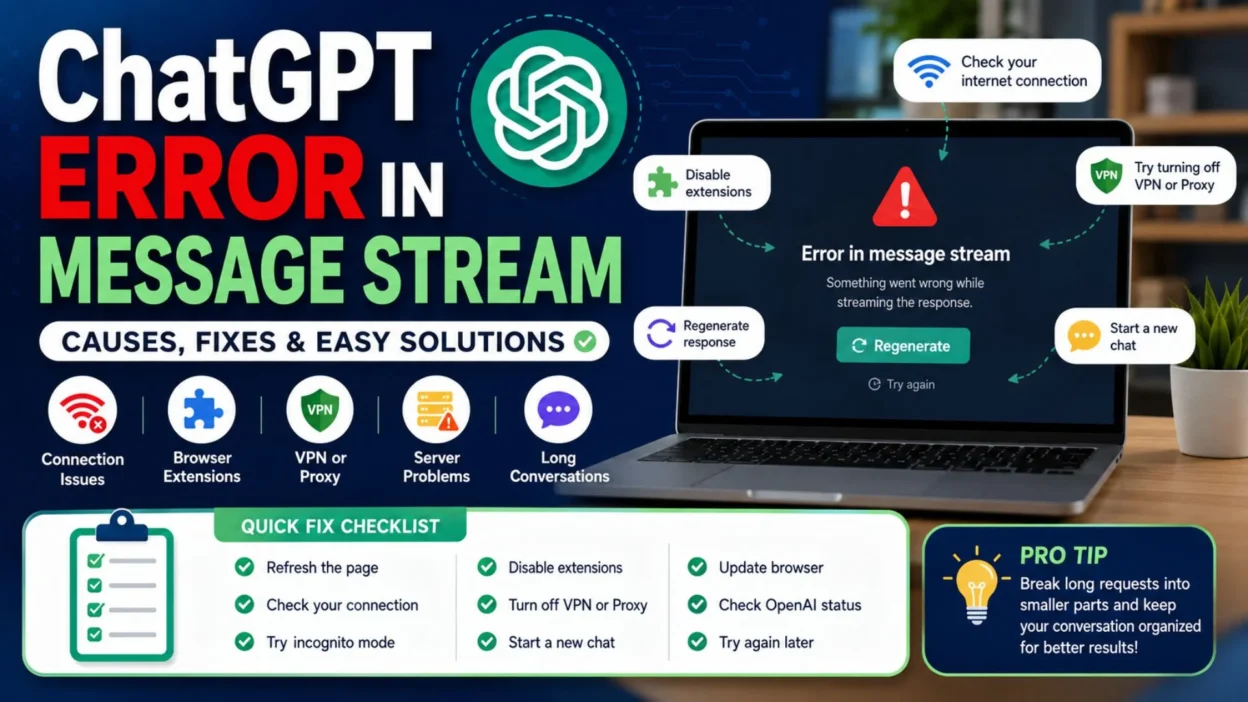
22. A Quick Troubleshooting Checklist
When ChatGPT error in message stream appears, work through the basics before trying complicated fixes.
- Refresh ChatGPT.
- Regenerate the response.
- Start a new chat.
- Send a shorter prompt.
- Check your internet.
- Try another network.
- Open an incognito window.
- Try another browser.
- Disable extensions temporarily.
- Turn off a VPN temporarily.
- Restart your browser.
- Restart the ChatGPT app.
- Restart your device.
- Check the OpenAI Status page.
- Test without attachments.
- Save your important prompt.
- Compare another conversation.
- Compare another device.
- Record the exact error.
- Contact Support if the problem persists.
23. How to Prevent Future Message Stream Problems
You cannot prevent every server-side problem, but good habits can make troubleshooting easier.
- Keep important prompts saved.
- Avoid unnecessarily huge conversations.
- Start a fresh chat for a new project.
- Keep browser software updated.
- Keep the ChatGPT app updated.
- Avoid unnecessary browser extensions.
- Keep your internet connection stable.
- Avoid unreliable network connections when possible.
- Test without VPNs when troubleshooting.
- Save important generated work.
- Break huge tasks into logical sections.
- Keep attachments organized.
- Avoid uploading duplicate files.
- Check service status during widespread problems.
- Do not panic when an error appears.
- Treat troubleshooting like a checklist, not a mystery movie.
24. Common Mistakes to Avoid
Troubleshooting becomes harder when every possible setting changes at once.
- Do not repeatedly click Send.
- Do not refresh every few seconds.
- Do not change five settings simultaneously.
- Do not assume your account is broken.
- Do not assume the server is always at fault.
- Do not blame your internet immediately.
- Do not install random browser tools.
- Do not disable important security controls permanently.
- Do not delete useful chats before saving them.
- Do not forget your original prompt.
- Do not ignore the Status page.
- Do not keep using a broken chat indefinitely.
- Do not repeat the same failed fix twenty times.
- Do not panic over one failed response.
- Do not turn a small technical hiccup into a full detective series.
25. The Fastest Fix Order
If you want a simple order to follow, start here.
- Step 1: Wait briefly.
- Step 2: Regenerate the response.
- Step 3: Refresh ChatGPT.
- Step 4: Start a new chat.
- Step 5: Send a shorter prompt.
- Step 6: Check your internet connection.
- Step 7: Try incognito mode.
- Step 8: Try another browser.
- Step 9: Disable browser extensions temporarily.
- Step 10: Disconnect your VPN temporarily.
- Step 11: Restart your browser or app.
- Step 12: Restart your device.
- Step 13: Test another network.
- Step 14: Check OpenAI Status.
- Step 15: Test without attachments.
- Step 16: Save the exact error message.
- Step 17: Note the time and device.
- Step 18: Try again later if a service incident is active.
- Step 19: Contact Support if the issue continues.
- Step 20: Celebrate when the message finally streams properly.
FAQs
What is the ChatGPT error in message stream?
The ChatGPT error in message stream generally appears when a response does not finish normally. The interruption can be related to network connectivity, browser behavior, extensions, VPNs, long conversations, or temporary service problems.
Is the ChatGPT error in message stream caused by bad internet?
Not always. A network problem is one possible cause, but OpenAI also recommends checking browser extensions, VPNs, long chats, service status, and other connection-related factors.
How do I quickly fix ChatGPT error in message stream?
Start with the simplest steps: regenerate the answer, refresh the page, start a new chat, and test your internet connection. If that does not work, try incognito mode, another browser, and temporarily disabling extensions or VPNs.
Can a long ChatGPT conversation cause problems?
A very long conversation can sometimes become difficult to work with. OpenAI recommends starting a new chat when a conversation is long or becomes stuck, making a fresh conversation a useful troubleshooting step.
What should I do if nothing fixes the error?
Check the official OpenAI Status page first. If the problem continues across browsers, devices, or networks, collect useful details about the error and contact OpenAI Support for further help.
Conclusion
The ChatGPT error in message stream can look dramatic, but it is often a connection or session problem rather than a disaster. Start small: regenerate the response, refresh the page, try a new chat, check your connection, and test another browser.
If the problem keeps returning, check the official status page and work through the troubleshooting steps calmly. Save this guide for later, share it with someone who uses ChatGPT, and comment with the fix that worked best for you.

Muhammad Shahroz is a passionate writer who creates helpful content about messages and word meanings. He is committed to providing clear, accurate, and easy-to-understand information on TextsMessagez.com.