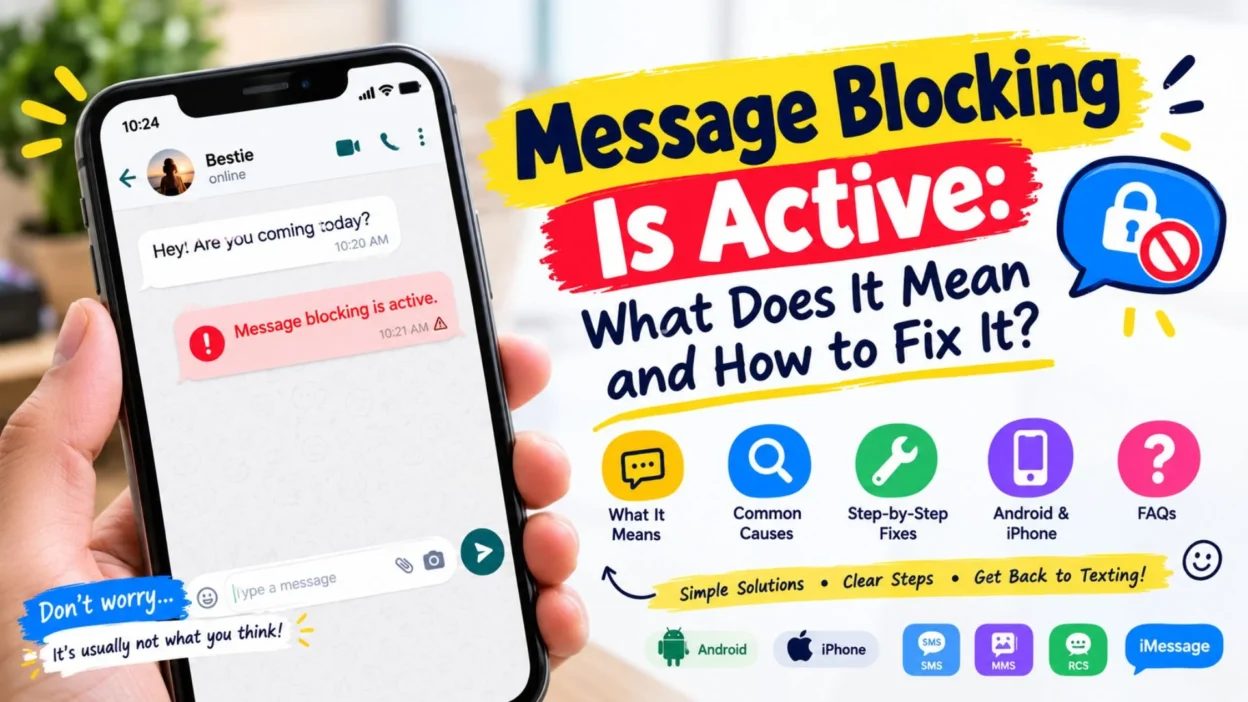
Seeing “message blocking is active” when you try to send a text can be confusing. It sounds like someone blocked you, but that is not always the case.
Usually, the message means your text was stopped by a carrier, account setting, phone setting, or messaging service. The good news? You can often find the cause with a few simple checks.
1. What Does “Message Blocking Is Active” Mean?
The phrase usually appears when a text cannot be sent successfully.
- Your text is being stopped before delivery.
- Your mobile carrier may be rejecting the message.
- Your account may have a messaging restriction.
- Your phone may have a blocked contact.
- Your SIM or eSIM may have a problem.
- Your plan may not support the message type.
- A carrier service may be temporarily unavailable.
- Your number may have a messaging restriction.
- International texting may be disabled.
- Premium SMS may be blocked.
- Short-code messages may be restricted.
- MMS settings can sometimes cause related problems.
- RCS can fail separately from normal SMS.
- A recent SIM change may affect messaging.
- A recent carrier change may cause routing issues.
In short, message blocking is active usually means the messaging path has refused the text. It does not automatically mean another person blocked you.
2. Does It Mean Someone Blocked You?
This is probably the first question most people ask.
- No, it does not prove someone blocked you.
- The error can come from your carrier.
- It can come from your own account.
- It can happen because of a blocked contact.
- It can happen with one number only.
- It can also happen with many numbers.
- A carrier restriction can affect outgoing texts.
- An unpaid balance may affect messaging.
- A SIM issue can stop SMS.
- An inactive line can cause problems.
- A wrong number can create delivery failures.
- A country-code mistake can cause trouble.
- A recipient may have a messaging restriction.
- Network routing can sometimes fail.
- The error alone cannot identify the exact cause.
So, don’t immediately assume, “Oh no, they blocked me!” Your phone may simply be having a tiny messaging tantrum.
3. Test Another Contact First
The fastest troubleshooting trick is surprisingly simple.
- Send a short text to another contact.
- Choose someone whose number you know works.
- Send a plain message without a photo.
- Avoid group chats during the test.
- Avoid links during the test.
- Try a simple “Hi” message.
- Wait for the result.
- If it sends, your line may be working.
- If it fails, check your account.
- Try another mobile number if possible.
- Test someone on another carrier.
- Check whether incoming texts work.
- Try sending to your own number.
- Compare the results.
- Use the pattern to narrow the problem.
If only one person fails, focus on that contact. If every text fails, investigate your line, plan, SIM, and carrier.
4. When Only One Person Cannot Receive Your Text
A single failed contact gives you an important clue.
- Check the phone number carefully.
- Look for a missing digit.
- Check the country code.
- Open the contact details.
- Make sure the number is current.
- Check your blocked contacts.
- Remove the number from the blocked list if needed.
- Start a new message thread.
- Avoid using an old conversation temporarily.
- Ask the person if their number changed.
- Check whether their service is active.
- Try sending a simple SMS.
- Avoid attachments during testing.
- Try again later.
- Compare with another recipient.
If every other contact works, the issue is less likely to be a general problem with your phone.
5. When Every Text Message Fails
Things become more interesting when no text will send.
- Check your cellular signal.
- Turn Airplane Mode off.
- Confirm your SIM is active.
- Check your eSIM line.
- Review your mobile plan.
- Check your account balance.
- Look for an overdue payment.
- Confirm SMS is included.
- Check for carrier restrictions.
- Restart the phone.
- Install available system updates.
- Check your default messaging app.
- Test another recipient.
- Check your carrier account.
- Contact carrier support if nothing works.
When all recipients fail, an account, line, SIM, or carrier problem becomes more likely than one blocked contact.
6. Check Your Mobile Plan
Your messaging plan matters more than many people realize.
- Confirm your plan is active.
- Check whether SMS is included.
- Check whether MMS is included.
- Look for an expired prepaid package.
- Check your remaining balance.
- Review recent account changes.
- Check for a suspended service.
- Look for messaging restrictions.
- Review international texting options.
- Check short-code restrictions.
- Check premium-message settings.
- Confirm the correct phone number is active.
- Check whether a payment failed.
- Review carrier notifications.
- Contact support if the account looks normal.
A working internet connection does not always mean your SMS service is working correctly.
7. Check Your SIM or eSIM
A SIM problem can make texting surprisingly difficult.
- Make sure the SIM is inserted correctly.
- Check whether your phone recognizes the SIM.
- Confirm the correct number is displayed.
- Restart after inserting a SIM.
- Check your eSIM status.
- Confirm the correct line is active.
- Disable an unused secondary line temporarily.
- Check your cellular settings.
- Look for “No Service.”
- Look for “SOS Only.”
- Test a phone call.
- Test mobile data.
- Try sending another SMS.
- Check after a SIM replacement.
- Contact the carrier if activation looks wrong.
Dual-SIM phones deserve extra attention because the wrong line may be selected for messaging.
8. Check Your Signal
SMS normally depends on your mobile network.
- Look at your signal bars.
- Move somewhere with better coverage.
- Step outside if you are indoors.
- Turn Airplane Mode on briefly.
- Turn Airplane Mode off again.
- Wait for the network to reconnect.
- Restart your phone.
- Check whether calls work.
- Check whether mobile data works.
- Try another location.
- Avoid testing inside a signal dead zone.
- Check for a carrier outage.
- Try the message again.
- Keep the phone connected to the network.
- Contact your carrier if the signal stays unavailable.
Sometimes the fix is less dramatic than expected. Your phone may simply be saying, “I can’t find the tower, boss.”
9. Check Blocked Contacts
Your own blocked list can cause confusion.
- Open your phone’s blocked contacts.
- Search for the recipient’s number.
- Check whether the number is blocked.
- Remove the block if appropriate.
- Save the number again.
- Start a fresh conversation.
- Send a plain text.
- Check whether incoming messages work.
- Review spam settings.
- Check message filtering options.
- Look at unknown-sender settings.
- Check third-party blocking apps.
- Restart the messaging app.
- Try the message again.
- Test another contact.
The exact menu names vary between Android phones and iPhones.
10. SMS, MMS, RCS, and iMessage Are Different
Not every text uses the same technology.
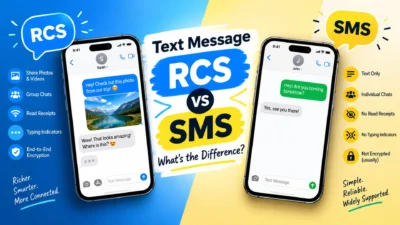
- SMS handles ordinary carrier texts.
- MMS commonly handles pictures and group messages.
- RCS adds richer chat features.
- iMessage works through Apple’s messaging service.
- A failure in one service may not affect another.
- Plain SMS can work while MMS fails.
- RCS can fail while SMS works.
- iMessage can work while SMS fails.
- Mobile data matters for some message types.
- Wi-Fi can support internet-based messaging.
- Carrier support varies by service.
- Phone settings can affect the selected service.
- Your message color can provide a clue on iPhone.
- Group chats may use different messaging methods.
- Identify the message type before troubleshooting.
This distinction is important because fixing an SMS problem may not fix an RCS or MMS problem.
11. Why Pictures May Fail When Texts Work
If normal texts send but pictures do not, don’t panic.
- The problem may be MMS-related.
- Mobile data may need to be enabled.
- Your carrier may restrict MMS.
- APN settings may be incorrect.
- Group messaging may have separate requirements.
- Large attachments may fail.
- Weak cellular service can affect MMS.
- A carrier plan may limit MMS.
- Try a smaller picture.
- Send plain text first.
- Check mobile data.
- Restart the phone.
- Check carrier settings.
- Update your phone.
- Contact the carrier if MMS remains blocked.
A failed photo message does not necessarily mean your SMS service is blocked.
12. Check International Texting
International numbers can create their own problems.
- Confirm the country code.
- Remove an incorrect local prefix.
- Check your international texting plan.
- Ask whether international SMS is enabled.
- Verify the recipient’s number.
- Try a local number.
- Test another international contact.
- Check roaming settings if traveling.
- Confirm your account is active.
- Look for international restrictions.
- Avoid repeatedly sending failed texts.
- Check carrier pricing.
- Review your plan details.
- Contact your carrier for international support.
- Try again after correcting the number.
A tiny country-code mistake can turn a perfectly good text into a digital postcard with nowhere to go.
13. Premium SMS and Short Codes
Some special numbers are treated differently from normal phone numbers.
- Short codes may use five or six digits.
- Verification services may use short codes.
- Banking alerts may use special numbers.
- Some carriers restrict premium SMS.
- Account settings may block these messages.
- Parental controls can affect them.
- Spam protection may restrict them.
- Commercial messages may have special rules.
- Normal texts may still work.
- Test a regular mobile number.
- Check premium SMS settings on Android.
- Review carrier restrictions.
- Contact support if only short codes fail.
- Avoid changing random settings first.
- Confirm the service you are contacting supports SMS.
If normal texting works but verification codes do not, short-code restrictions are worth checking.
14. Restart Your Phone
Yes, the classic restart still deserves a place here.
- Save anything important.
- Turn the phone off.
- Wait several seconds.
- Turn it back on.
- Wait for cellular service.
- Check your signal.
- Open your messaging app.
- Send a simple test.
- Try another recipient.
- Check whether the error remains.
- Avoid sending many messages immediately.
- Give the network time to reconnect.
- Test SMS before MMS.
- Test one message at a time.
- Move to a better signal area if needed.
A restart cannot remove a carrier restriction, but it can clear temporary connection or app problems.
15. Update Your Phone
Software updates can fix communication bugs.
- Check for system updates.
- Install available updates.
- Update your messaging app.
- Restart after updating.
- Check carrier settings when available.
- Test a plain SMS.
- Check your SIM status.
- Review messaging permissions.
- Check your default SMS app.
- Test mobile data.
- Test calls.
- Check whether the error disappeared.
- Avoid installing unknown “SMS fixer” apps.
- Keep your software current.
- Contact support if the issue continues.
An update is especially worth checking if the problem started after a recent phone or app change.
16. Android Fixes to Try
Android phones have many different interfaces, so menu names can vary.
- Open the Messages app.
- Check Spam and Blocked.
- Review blocked numbers.
- Confirm Messages is the default SMS app.
- Check app permissions.
- Update Google Messages if installed.
- Check RCS settings.
- Turn RCS off temporarily for testing.
- Turn mobile data on for MMS testing.
- Restart the phone.
- Check SIM settings.
- Confirm the correct SIM handles SMS.
- Clear the Messages app cache if appropriate.
- Avoid clearing data unless you understand the effect.
- Contact your carrier if SMS remains blocked.
The exact steps depend on your Android brand, version, and carrier.
17. iPhone Fixes to Try
iPhone users can also check a few important settings.
- Check cellular service.
- Confirm the correct phone line is active.
- Check Messages settings.
- Make sure Send as SMS is available when needed.
- Check iMessage settings.
- Check Send & Receive.
- Confirm your phone number is selected.
- Review blocked contacts.
- Restart the iPhone.
- Check for iOS updates.
- Test another recipient.
- Test a green-bubble message.
- Check mobile data for MMS.
- Check your carrier settings.
- Contact your carrier if the restriction remains.
If iMessage works but green-bubble messages fail, that difference can help identify the problem.
18. Network Settings: When Should You Reset Them?
A network reset can help, but it should not be your first move.
- Try simple troubleshooting first.
- Confirm the problem affects SMS.
- Restart the phone.
- Check the SIM or eSIM.
- Check your carrier account.
- Check your signal.
- Test another contact.
- Update your phone.
- Then consider network settings.
- Remember that Wi-Fi settings may be removed.
- Saved networks may need to be reconnected.
- Cellular configuration can be refreshed.
- Bluetooth-related network settings may also change.
- Follow your phone’s exact reset instructions.
- Contact support if you are unsure.
A network reset can help with configuration problems, but it cannot magically override a carrier-level block.
19. When You Should Contact Your Carrier
Sometimes the phone is innocent.
- Contact support if every SMS fails.
- Contact support if your account looks restricted.
- Contact support after a SIM change.
- Contact support after switching carriers.
- Contact support if your number was recently ported.
- Ask whether SMS is enabled.
- Ask whether MMS is enabled.
- Ask whether international SMS is restricted.
- Ask whether short codes are blocked.
- Ask whether your line is fully provisioned.
- Ask whether there is an account restriction.
- Mention the exact error message.
- Tell them whether one or every contact fails.
- Follow their troubleshooting instructions.
- Ask them to check the messaging service on your line.
Carrier support can see account-level restrictions that your phone cannot show.
20. The Fastest Troubleshooting Checklist
Want the short version? Start here.
- Send a plain text to another person.
- Check whether one contact or everyone is affected.
- Verify the recipient’s number.
- Check your blocked contacts.
- Check your cellular signal.
- Turn Airplane Mode off.
- Restart your phone.
- Confirm the correct SIM is active.
- Check your account balance.
- Check your mobile plan.
- Check for carrier restrictions.
- Test plain SMS before MMS.
- Check mobile data for MMS.
- Check RCS separately.
- Check iMessage separately on iPhone.
- Update your phone.
- Review short-code restrictions.
- Reset network settings only if needed.
- Contact your carrier if the issue remains.
- Don’t assume someone blocked you.
This simple order helps you avoid changing ten settings when only one thing is wrong.
FAQs
Does “message blocking is active” mean someone blocked me?
No. The message does not prove that another person blocked you. It can come from a carrier restriction, account problem, SIM issue, blocked contact, incorrect number, or messaging-service problem.
Why can I call someone but not text them?
Calls and SMS can use different services and account permissions. Your phone may have working voice service while SMS is restricted or incorrectly provisioned.
Why does message blocking happen with only one person?
If every other contact works, check the number, country code, blocked list, and the recipient’s service. A problem affecting one contact does not necessarily mean your whole messaging service is blocked.
Can restarting my phone fix message blocking?
It can fix temporary phone or network connection issues. However, a carrier-level restriction usually needs to be fixed through your carrier account or support team.
What should I do if nothing fixes the error?
Contact your mobile carrier and give them the exact error. Tell them whether the problem affects one recipient or everyone, and ask them to check SMS restrictions and provisioning on your line.
Conclusion
The message blocking is active error looks serious, but it does not automatically mean someone blocked you. In many cases, the real cause is a carrier restriction, account problem, SIM or eSIM issue, incorrect number, or messaging-service setting.
Start with the easiest test: send a plain text to another known-working contact. Then check your signal, account, SIM, blocked list, and messaging settings. If every text still fails, your carrier is the best place to look for the answer.
Found the fix? Share this guide with someone who keeps staring at their phone wondering why their text refuses to leave. And if you have another messaging error, drop it in the comments

Muhammad Shahroz is a passionate writer who creates helpful content about messages and word meanings. He is committed to providing clear, accurate, and easy-to-understand information on TextsMessagez.com.