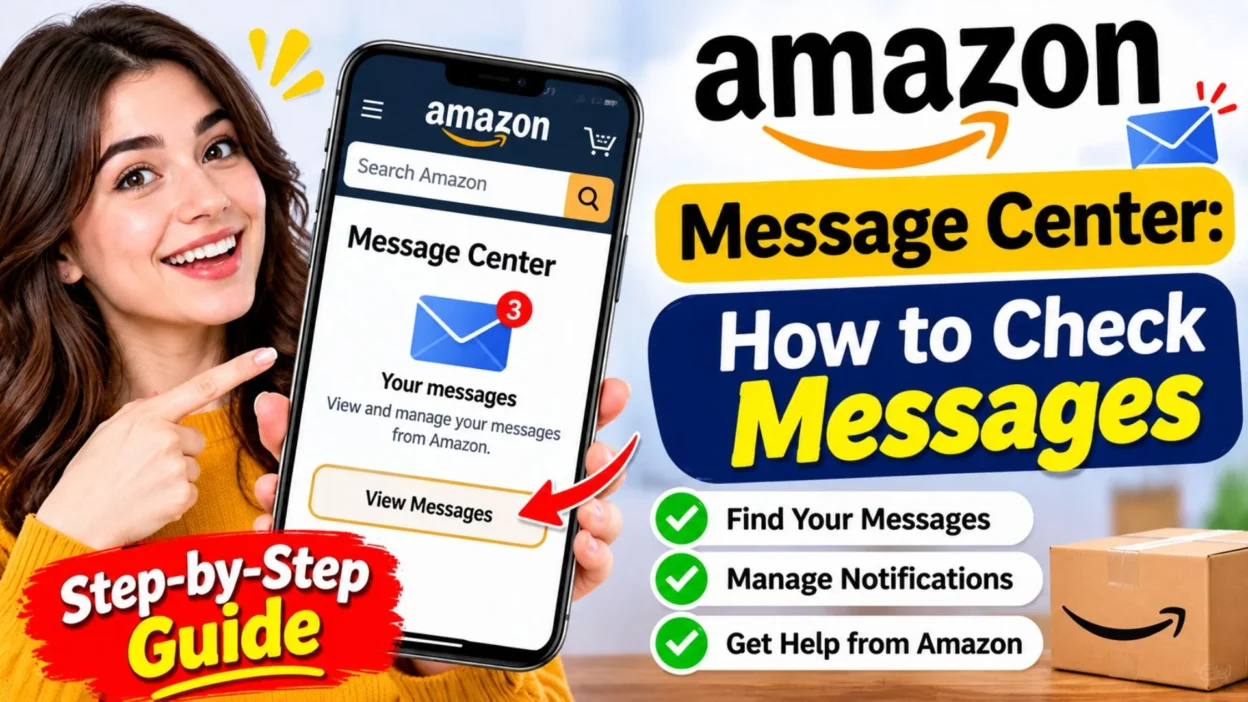
Have you ever received a message from an Amazon seller but struggled to find it? Or perhaps you want to check an old conversation about an order. The Amazon Message Center makes it easier to manage these conversations in one place.
Amazon provides a messaging system where customers can communicate with marketplace sellers. You can also review previous conversations and reply when you need more information about an order.
However, finding this feature can sometimes be confusing, especially if you are using the Amazon mobile app for the first time.
In this guide, you will learn how to access Amazon Message Center on desktop and mobile devices. We will also explain how to read messages, contact sellers, reply to conversations, and troubleshoot common problems.
What Is Amazon Message Center?
Amazon Message Center is a communication area where customers can view messages from Amazon and third-party marketplace sellers.
For example, you might receive a message about a product question, delivery issue, return, or order-related problem.
Instead of searching through different email conversations, you can use the Message Center to find your seller communications.
It is particularly useful when you need to:
- Read messages from Amazon marketplace sellers.
- Reply to questions about an order.
- Check previous conversations.
- Follow up on delivery or product issues.
- Keep track of seller communication.
- Find information about a purchase.
Amazon also provides a separate Buyer-Seller Messaging service for sellers through Seller Central. This allows sellers to manage customer conversations.
How to Access Amazon Message Center on a Computer
If you use Amazon on a desktop or laptop, you can access your messages directly through the website.
Follow these simple steps.
Step 1: Open the Amazon Website
First, open your preferred web browser. Visit the official Amazon website for your country.
For example, customers in the United States can visit Amazon.com.
Make sure you are using the correct Amazon account.
Step 2: Sign In to Your Account
Click the Sign In option and enter your Amazon login details.
If you are already signed in, you can move to the next step.
Step 3: Open Your Account
Move your mouse over the Account & Lists option at the top of the homepage.
Select Your Account from the available options.
Step 4: Find Your Messages
Look for the communication or account-related section.
Select Your Messages or Messages from Amazon and sellers, depending on your account layout.
You can also try opening the direct Message Center page:
Step 5: Open a Conversation
Once the page loads, look for the Buyer/Seller Messages section.
Select a conversation to read its contents.
You can review the available messages and reply when necessary.
How to Check Amazon Messages on a Mobile Phone
You do not need a computer to check your Amazon messages. The Amazon Shopping app also provides access to seller conversations.
Here is how to find them.
Step 1: Open the Amazon App
Open the Amazon Shopping app on your Android phone or iPhone.
Sign in using the account associated with your purchases.
Step 2: Open the Account Section
Tap the profile or account icon.
Depending on your app version, you may also need to open the main menu.
Step 3: Find Message Center
Scroll through the account options until you find Message Center or Your Messages.
Tap this option to continue.
Step 4: Select Buyer/Seller Messages
Open the Buyer/Seller Messages tab.
You should now be able to view available conversations with marketplace sellers.
Step 5: Read or Reply to a Message
Select the conversation you want to check.
Read the seller’s response carefully. If you need additional information, use the available reply option.
Tip: Amazon sometimes changes its app layout. Therefore, the exact location of Message Center may vary between devices and app versions.
How to Read Messages from Amazon Sellers
Sometimes, customers receive messages from sellers about their purchases but do not know where to find them.
Fortunately, the process is straightforward.
Follow these steps:
- Sign in to your Amazon account.
- Open Your Account.
- Find Your Messages.
- Select Buyer/Seller Messages.
- Choose the conversation you want to read.
- Review the complete message.
You can use this section to check previous conversations as well.
For example, if you contacted a seller about a damaged product, you can return to the same conversation to review their response.
Keeping these messages in one place makes order-related communication easier to manage.
How to Reply to a Message on Amazon
Did a seller send you a message? You can usually reply directly through the existing conversation.
Here is how:
- Open Amazon Message Center.
- Select Buyer/Seller Messages.
- Find the conversation.
- Open the message.
- Select Reply if the option is available.
- Write your response.
- Review your message and send it.
Try to keep your response short and clear.
For example, if a seller asks for additional information about a delivery problem, provide the details they need to understand the issue.
Avoid sharing passwords, payment card details, or other sensitive information.
How to Contact an Amazon Seller Before Buying
You do not always need to purchase a product before contacting its seller.
Amazon provides an option to ask questions about eligible marketplace listings.
Follow these steps:
- Open the product page.
- Find the seller’s name.
- Select the seller’s name.
- Look for the Ask a Question option.
- Follow the messaging assistant prompts.
- Submit your question.
You can ask about product specifications, available information, or other purchase-related concerns.
However, the available contact options may depend on the product and seller.
Amazon Message Center for Sellers
Amazon also provides a messaging service for marketplace sellers.
However, the seller experience is different from the customer experience.
Sellers generally manage their customer conversations through Amazon Seller Central.
The Buyer-Seller Messaging service helps sellers communicate with customers about orders and product-related questions.
How Sellers Can Access Buyer-Seller Messages
If you sell products on Amazon, follow these steps:
- Open Amazon Seller Central.
- Sign in to your seller account.
- Find the Messages or envelope icon.
- Open the Buyer-Seller Messaging inbox.
- Select a customer conversation.
- Review the question and respond when needed.
The exact navigation may vary depending on the Seller Central interface.
Why Is Buyer-Seller Messaging Important?
Customer communication plays an important role in online shopping.
For sellers, responding to customer questions can help resolve problems and provide a better buying experience.
The messaging service can help sellers:
- Answer product-related questions.
- Resolve order problems.
- Provide necessary product information.
- Respond to delivery concerns.
- Keep track of customer conversations.
Sellers should also follow Amazon’s communication policies. Promotional messages and unnecessary marketing content are not appropriate for buyer-seller conversations.
Common Amazon Message Center Problems and Their Solutions
Sometimes, you may experience problems when trying to open or use Amazon Message Center.
The good news is that many common issues have simple solutions.
1. Amazon Message Center Is Not Showing
If you cannot find Message Center, first check whether you are signed in to the correct account.
Next, open the Your Account section and look for Your Messages.
You can also try accessing the direct page:
If the page still does not appear, try using another browser.
2. No Messages Are Showing in Your Inbox
An empty inbox does not always mean something is wrong.
You might not have received any seller messages yet.
Check the following:
- Make sure you are using the correct Amazon account.
- Open the Buyer/Seller Messages tab.
- Check your previous orders.
- Refresh the page.
- Check whether the seller has responded.
If you recently contacted a seller, allow some time for a response.
3. Cannot Reply to an Amazon Seller
There may be several reasons why the reply option is unavailable.
For example, the conversation may not support additional replies, or the seller communication option may be restricted.
Try opening the conversation again.
If you still cannot reply, visit Your Orders and select the relevant order. Amazon may provide another contact option based on the issue.
4. Amazon Messages Are Not Loading
A slow internet connection or temporary browser issue can prevent messages from loading.
Try these solutions:
- Refresh the Amazon page.
- Check your internet connection.
- Clear your browser cache.
- Update the Amazon Shopping app.
- Sign out and sign in again.
- Try another supported browser.
If the problem continues, contact Amazon Customer Service.
5. Seller Has Not Responded
If you have sent a question to a marketplace seller, you may need to wait for their response.
Amazon’s UK Buyer-Seller Messaging help page states that sellers should respond within 48 hours.
However, response expectations and available support options can vary by marketplace and situation.
If you have an unresolved order problem, check Your Orders for additional support options.
Is Amazon Message Center Safe?
Yes. Amazon’s Buyer-Seller Messaging service is designed to provide a controlled communication channel between customers and marketplace sellers.
It helps keep order-related conversations within Amazon’s system.
However, you should still follow basic online safety practices.
Here are some useful precautions:
- Never share your Amazon password.
- Do not send your full payment card details.
- Avoid suspicious links.
- Check that you are using the official Amazon website.
- Be careful with unexpected requests for personal information.
- Contact Amazon Customer Service if a message looks suspicious.
Also, remember that a message claiming to come from Amazon does not automatically mean it is genuine.
Always verify important account or payment issues through your official Amazon account.
Tips for Managing Your Amazon Messages
Managing your conversations properly can save time and help you avoid missing important updates.
Here are a few simple tips.
Check your inbox regularly: Review your messages whenever you have an open order or an unresolved issue.
Use the correct Amazon account: If you have multiple accounts, make sure you are checking the one connected to your purchase.
Keep conversations organized: Return to the existing conversation when discussing the same problem.
Write clear replies: Explain your issue using simple and direct language.
Check order information: If a message relates to a purchase, review the order details before responding.
These small habits can make communication with Amazon sellers much easier.
Frequently Asked Questions (FAQs)
1. Where Is Amazon Message Center Located?
Amazon Message Center is available through your Amazon account. Sign in, open Your Account, and select Your Messages. You can also visit the official US Message Center at https://www.amazon.com/gp/message.
2. How Do I Check My Amazon Messages?
Sign in to your Amazon account and open the Your Messages section. Select Buyer/Seller Messages to view conversations with marketplace sellers.
3. Can I Access Amazon Message Center on My Phone?
Yes. You can access your messages through the Amazon Shopping app. Open your account or menu section and look for Message Center or Your Messages.
4. Can I Reply to Amazon Seller Messages?
Yes. Open the relevant conversation and select Reply if the option is available. You can then write and send your response.
5. Why Can’t I See My Amazon Messages?
You may be using the wrong Amazon account, viewing the wrong message tab, or experiencing a temporary technical issue. Check your account and refresh the page.
6. How Do I Contact an Amazon Seller?
Open the product page, select the seller’s name, and choose Ask a Question if available. For existing orders, visit Your Orders and follow the contact options provided.
7. Is Amazon Message Center Free?
Yes. Accessing Amazon Message Center through your Amazon account does not require a separate messaging subscription.
8. Can I Find Old Conversations on Amazon?
You can review previous seller conversations through Buyer/Seller Messages. The conversations available depend on your account and Amazon’s message retention policies.
9. What Is the Difference Between Amazon Message Center and Seller Central Messages?
Amazon Message Center allows customers to view communications with Amazon and marketplace sellers. Seller Central Messages is the seller-side service used to manage customer conversations.
10. What Should I Do If an Amazon Seller Does Not Reply?
Give the seller time to respond. If the issue remains unresolved, visit Your Orders and check the available Amazon support or order-protection options.
Conclusion
The Amazon Message Center is a useful feature for customers who want to manage conversations with marketplace sellers.
Whether you use a desktop computer or mobile phone, you can access your messages, read previous conversations, and reply to sellers when needed.
If you cannot find a message, check your account, open the correct messaging tab, and make sure you are using the right Amazon login details.
By following the steps in this guide, you can manage your Amazon conversations more easily and stay informed about your purchases.
For more helpful messaging and communication guides, visit TextsMessagez.

Muhammad Shahroz is a passionate writer who creates helpful content about messages and word meanings. He is committed to providing clear, accurate, and easy-to-understand information on TextsMessagez.com.